

Who This Is For
This guide is for users who want to deploy Laminar alongside OpenHands Enterprise and inspect traces from Enterprise conversations.Why Laminar in OHE?
Laminar helps you understand what your OpenHands deployment is doing in production:- Inspect prompts, tool calls, answers, and nested agent behavior in Laminar’s trace views.
- Use session replay for browser agents when conversations drive browser automation.
- For Helm installs, define signals to classify failures, measure outcomes, and monitor recurring patterns across many traces.
Prerequisites
Before you begin, complete the Quick Start guide.Enable Analytics
- VM Install (Admin Console)
- Kubernetes (Helm)
VM installs currently support trace collection, but do not support Laminar signals. The Admin Console configures the Laminar Project API Key only; the installer sets the remaining Laminar connection values automatically.
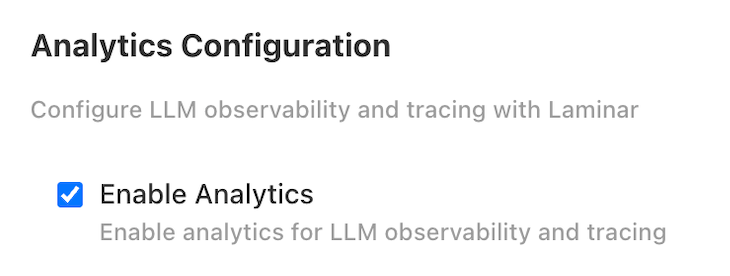
Deploy
- VM Install (Admin Console)
- Kubernetes (Helm)
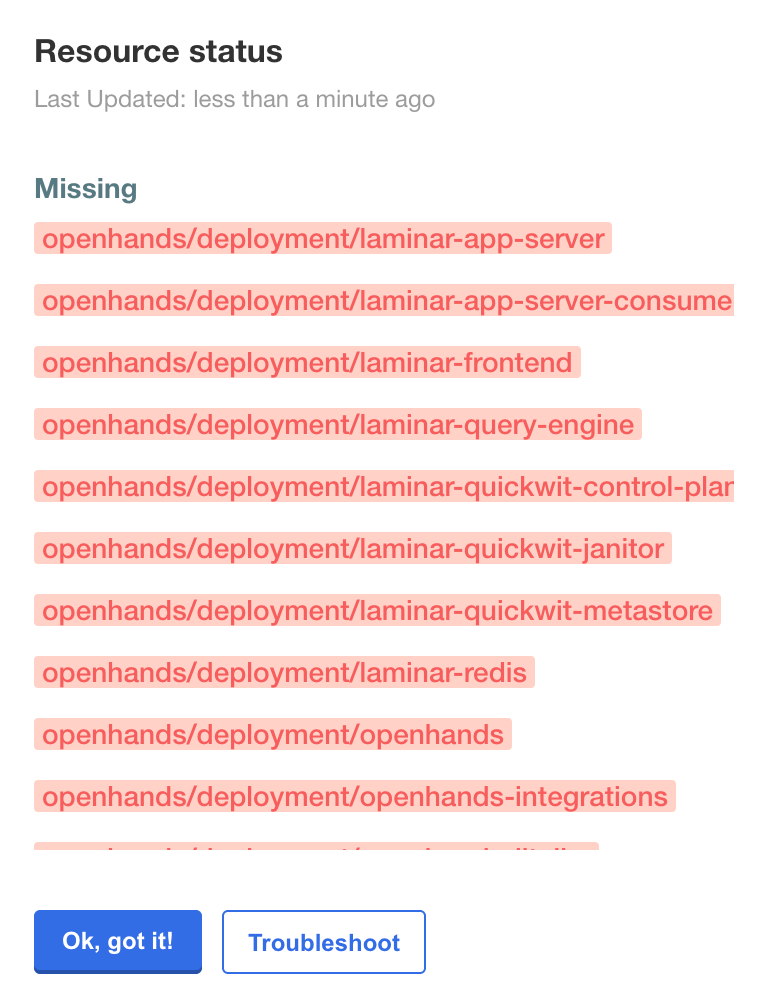
OpenHands will begin deploying. You can expect the deployment status to transition from Missing to Unavailable to Ready. This typically takes 10-15 minutes.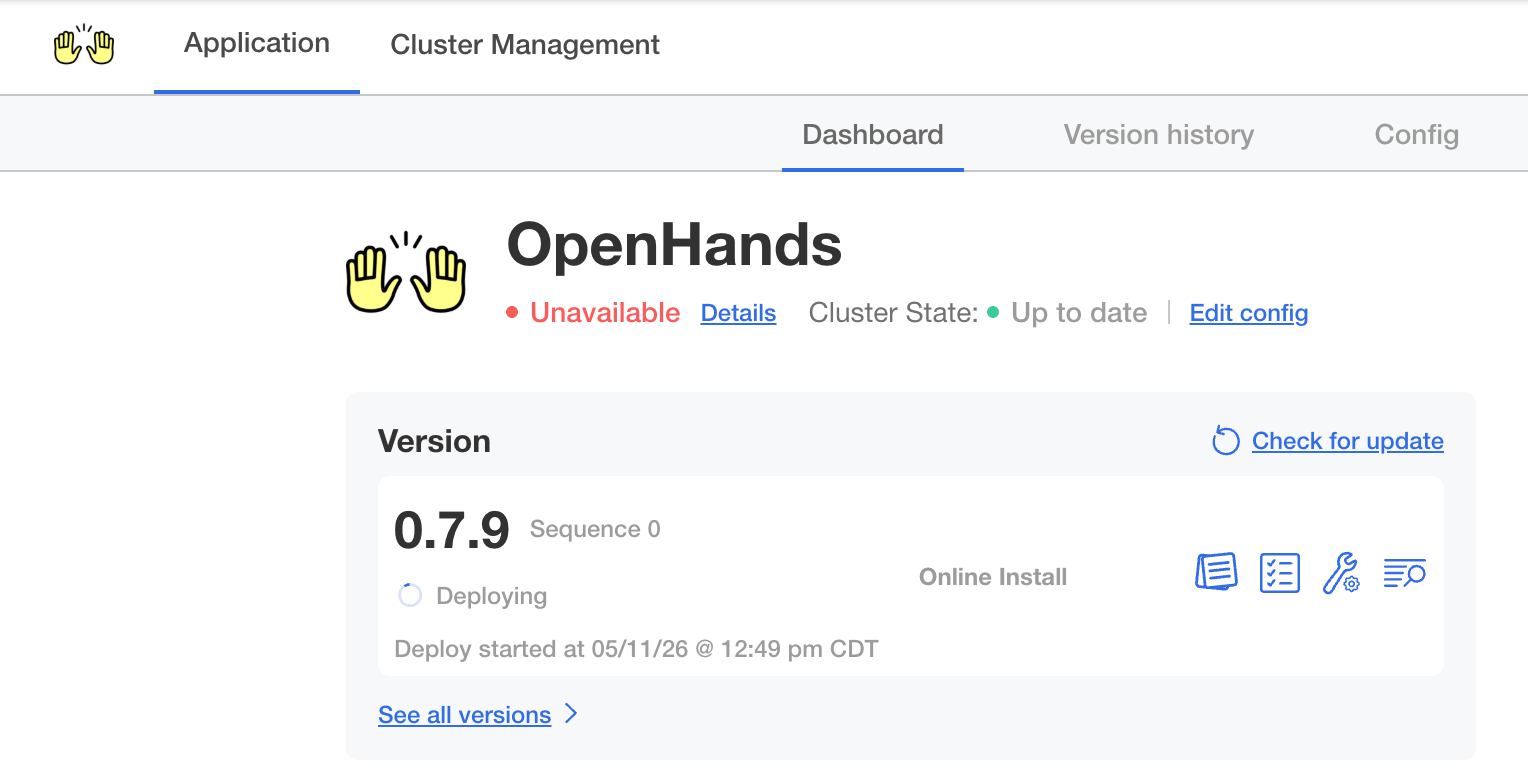
Access the Laminar UI
Once the deployment status shows Ready, navigate to the Laminar frontend URL:- VM install:
https://analytics.<your-base-domain> - Kubernetes install: the hostname configured in
laminar.frontend.ingress.hostname
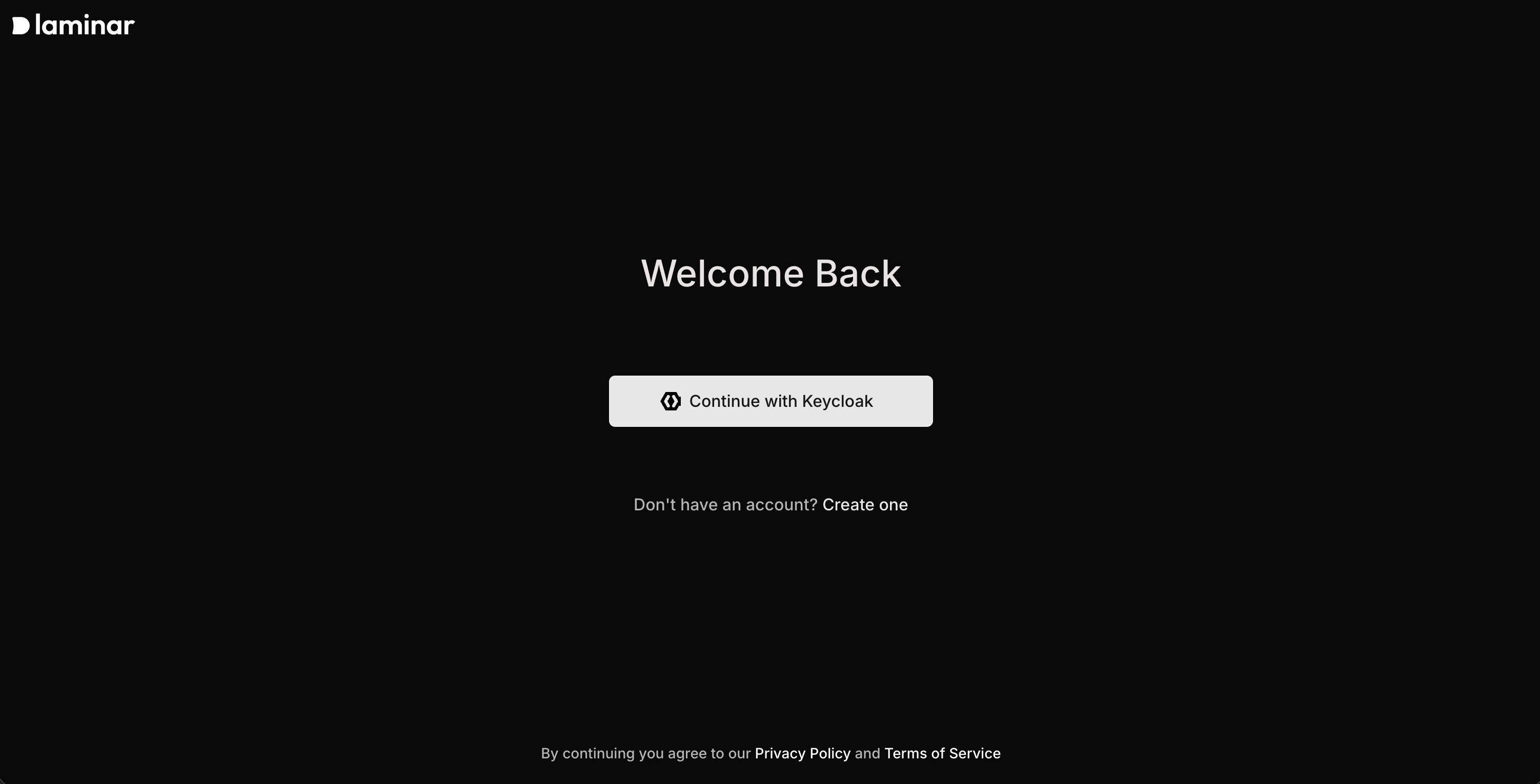
For the Continue with Keycloak flow to succeed, the Keycloak client referenced by the
keycloak-realm Secret must allow the Laminar callback. Its Valid Redirect URIs must include https://analytics.<your-base-domain>/api/auth/callback/keycloak and its Web Origins must include https://analytics.<your-base-domain>.These must match the hostname in laminar.frontend.ingress.hostname. If your DNS uses the simple (single-level) layout — for example analytics.<your-base-domain> rather than a nested analytics.app.<your-base-domain> — confirm the redirect URI matches that hostname exactly, otherwise Keycloak rejects the login with an Invalid parameter: redirect_uri error.Create a Laminar Project
Create a project in the Laminar UI: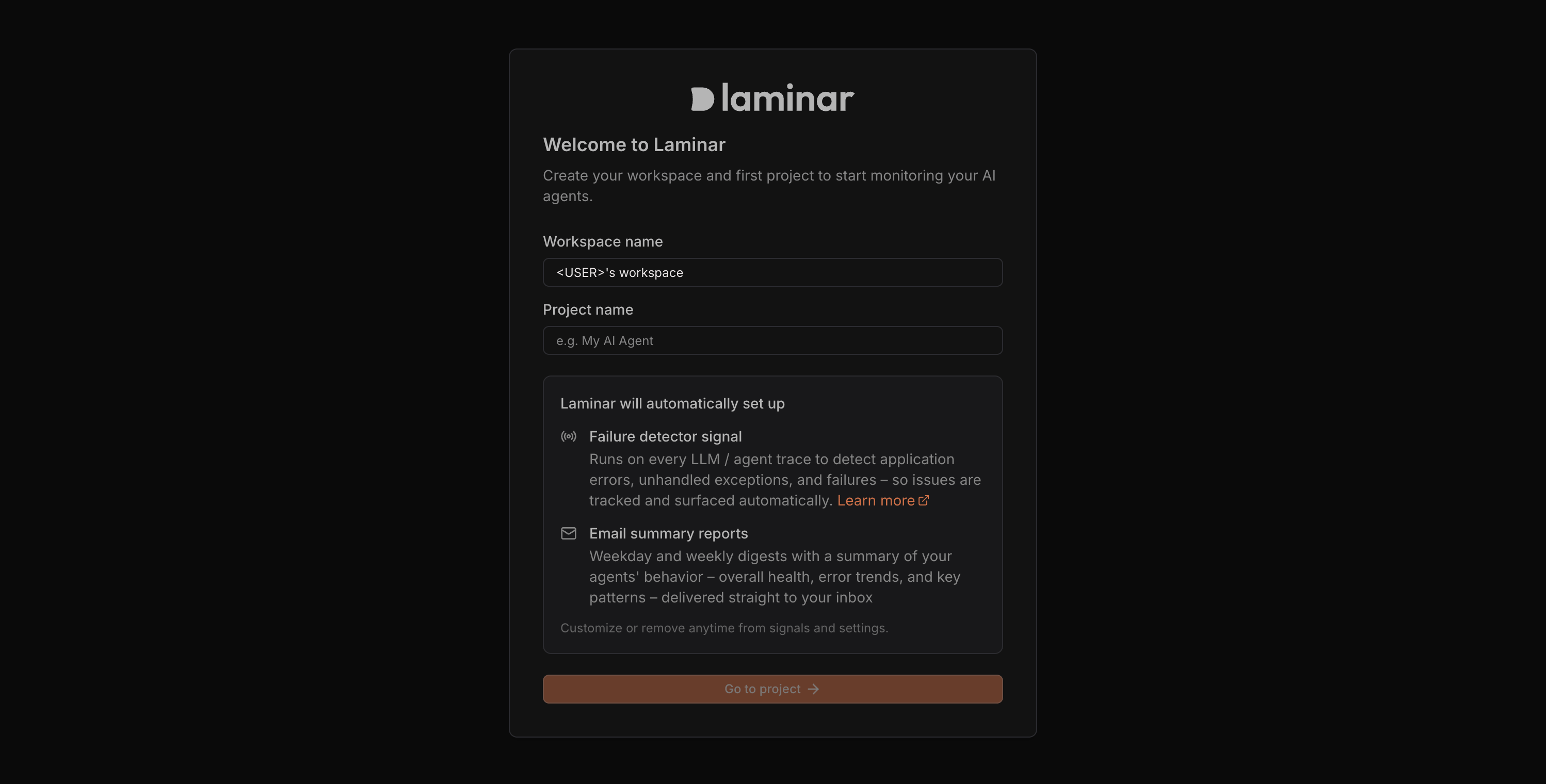
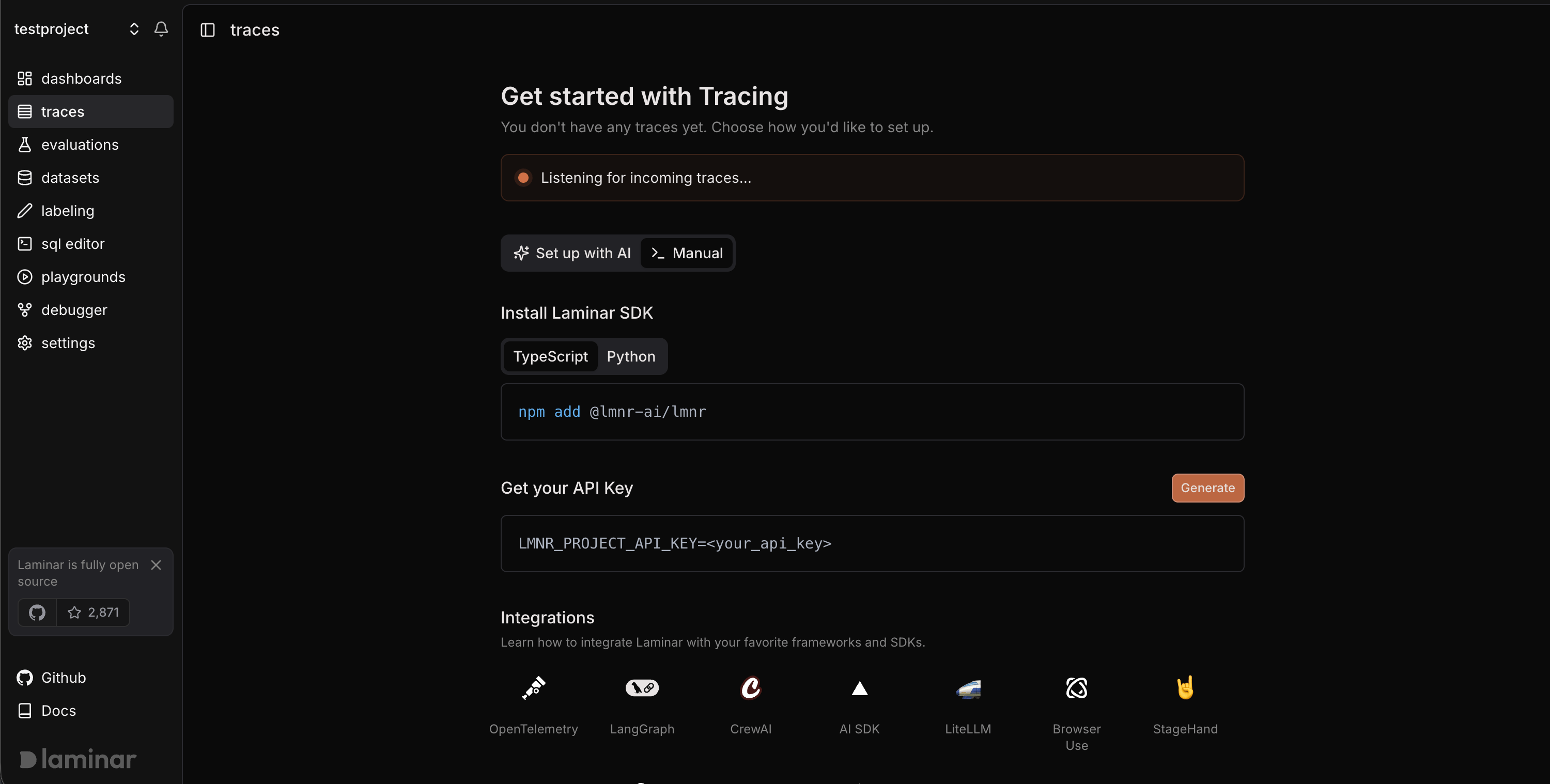
Create an Ingest-Only API Key
Always use ingest-only API keys when deploying OHE. Ingest-only keys are recommended because OHE only needs permission to write traces. They cannot be used to read trace data.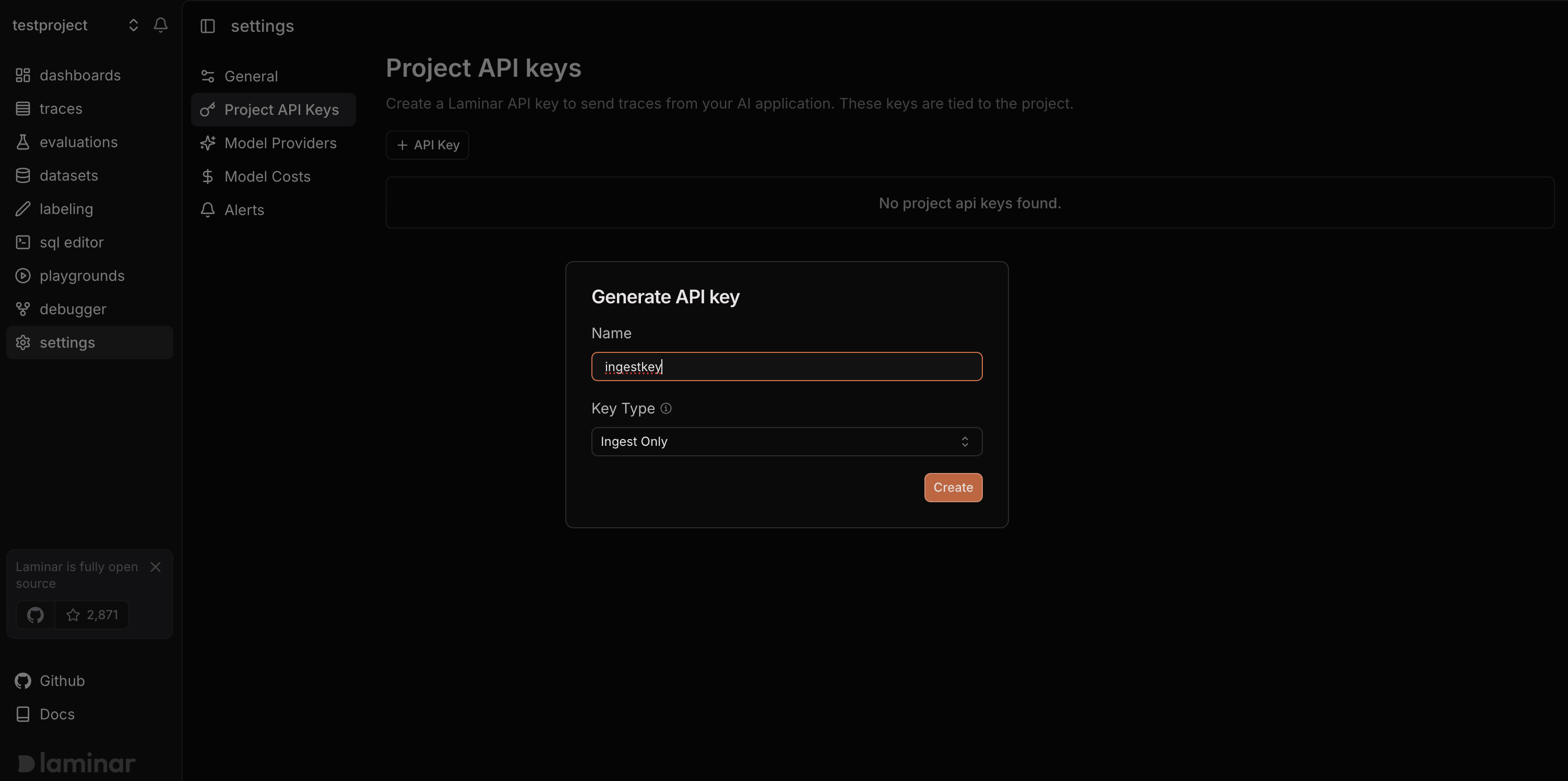
Set the Laminar Project API Key
This is the sameLMNR_PROJECT_API_KEY described in the SDK observability guide.
- VM Install (Admin Console)
- Kubernetes (Helm)
Set the ingest-only key as the Laminar Project API Key in the Admin Console configuration.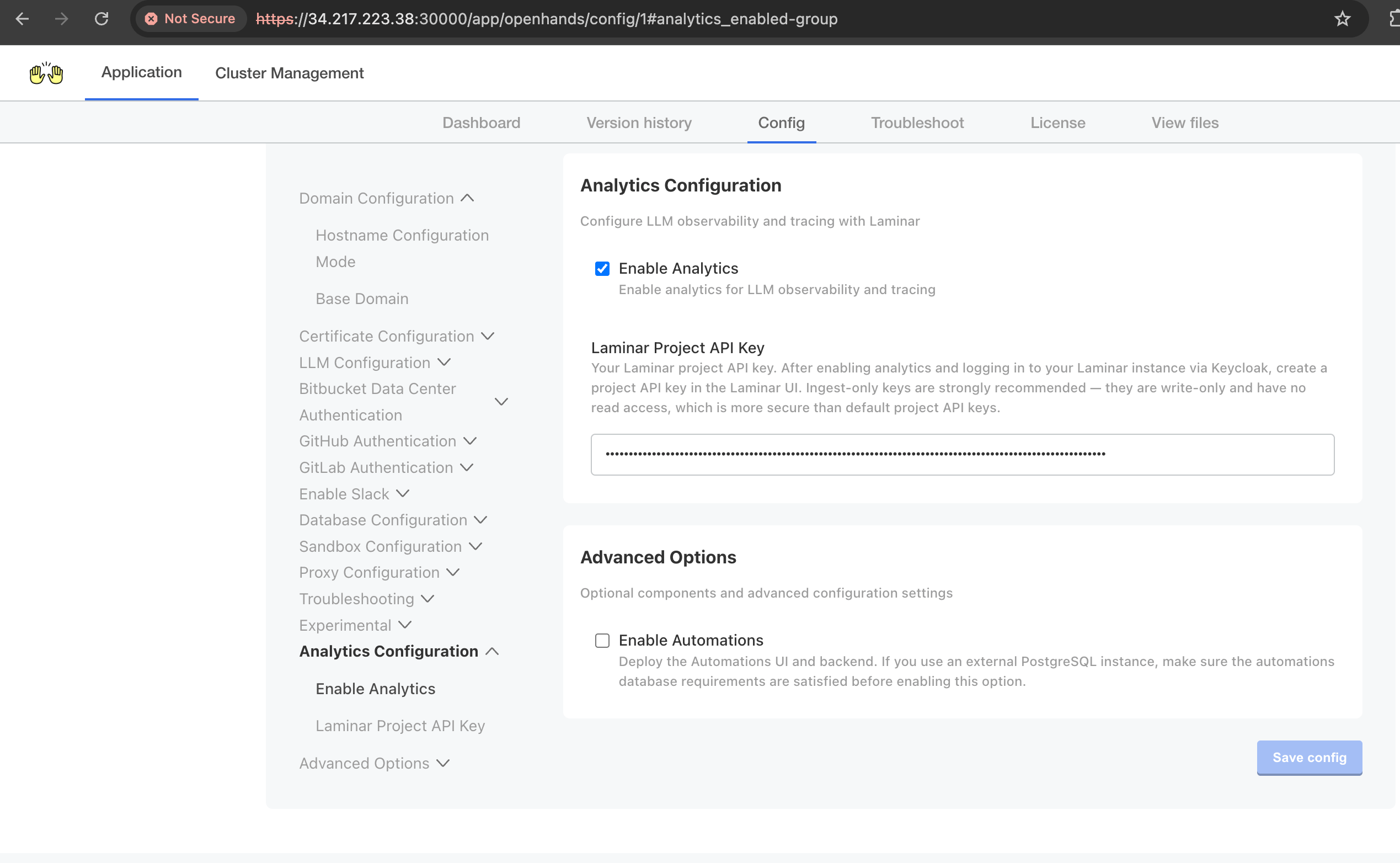
Configure Runtime Environment Variables
- VM Install (Admin Console)
- Kubernetes (Helm)
VM installs configure analytics through the Admin Console. After analytics is enabled and the Laminar Project API Key is saved, the installer automatically configures:The Admin Console does not currently expose
LLM_* settings for Laminar AI features. VM installs currently send traces to Laminar, but do not support Laminar signals.Deploy Updated Configuration
Deploy the configuration change after setting the Laminar Project API Key.- VM Install (Admin Console)
- Kubernetes (Helm)
Click Deploy in the Admin Console.
Start a Conversation
Navigate to the OpenHands UI athttps://app.<your-base-domain>. Start a new conversation and try a prompt.
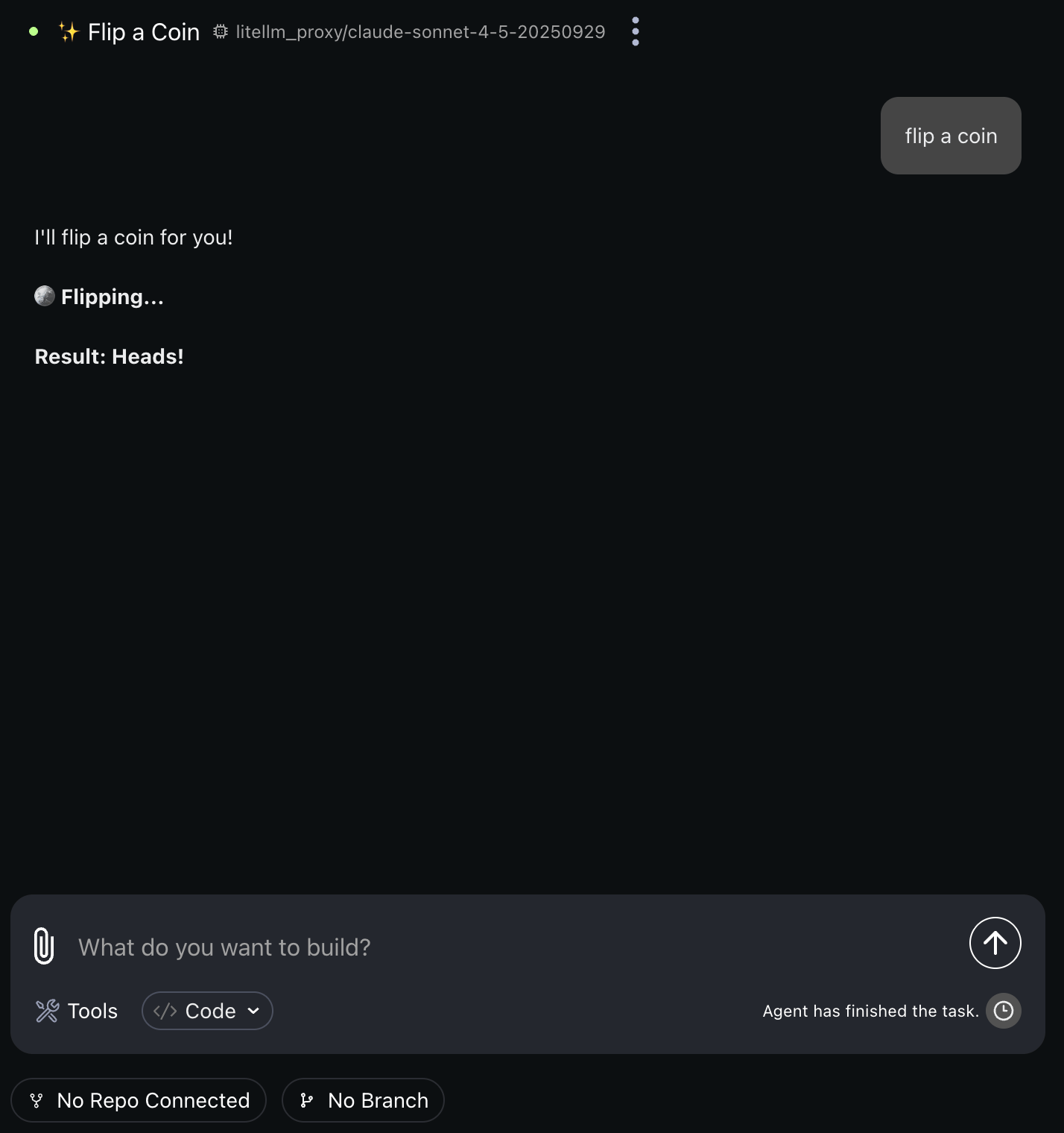
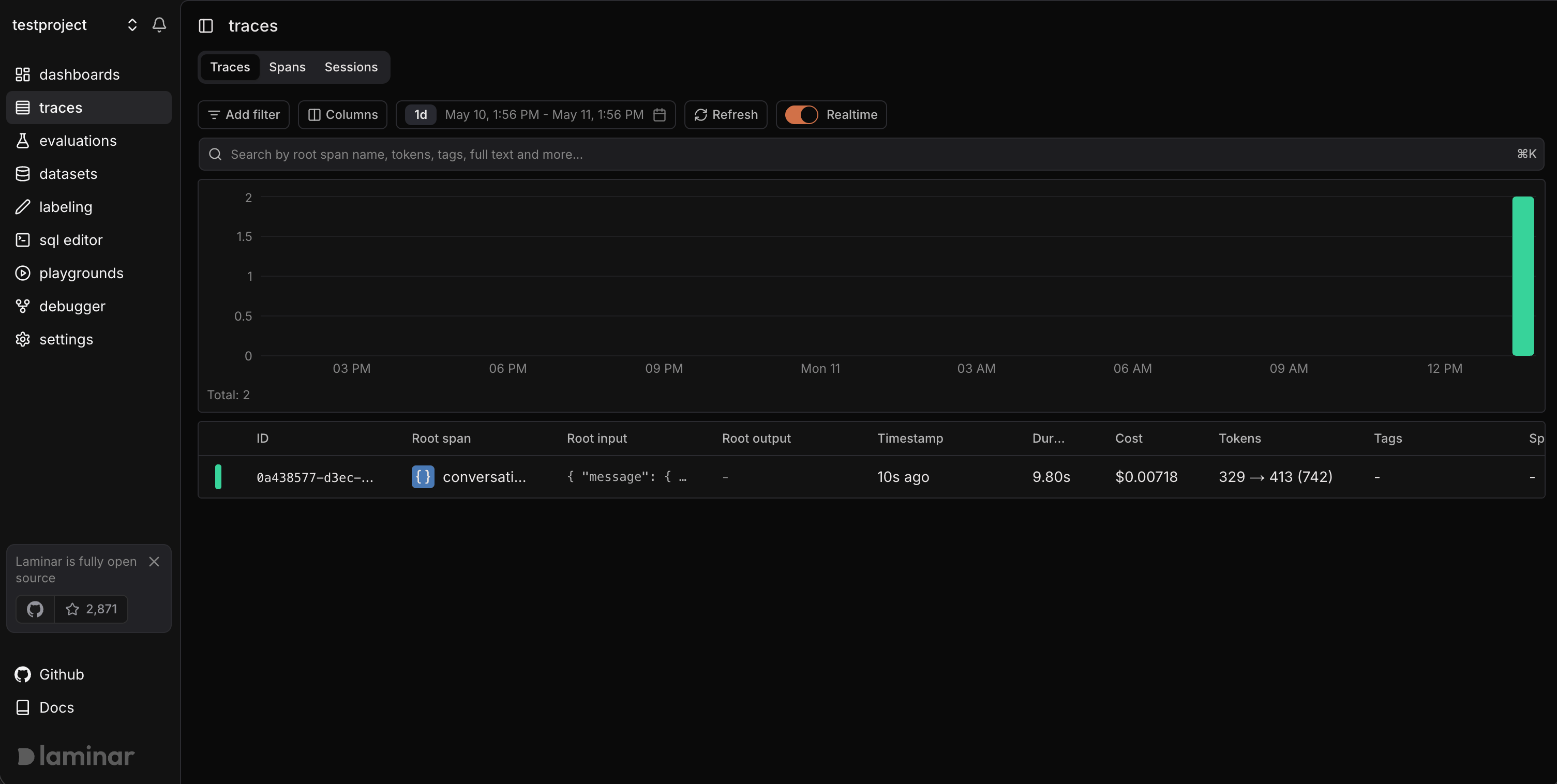
Query Traces with SQL
Use Laminar’s CLI for expected read-only access to trace data. The CLI authenticates as your Laminar user, not with the ingest-only project API key configured for OpenHands trace collection. For Laminar Cloud:POST request to /v1/sql/query with a read-capable Laminar project API key:
https://api.lmnr.ai with your Laminar API endpoint.
What to Do Next in Laminar
Once traces are flowing, use Laminar’s official docs to go deeper:- Viewing Traces to inspect a single conversation in transcript, tree, or timeline views.
- For Helm installs, Signals to extract structured outcomes or failure modes across many traces.
- Session replay for browser agents to debug browser-based automations.
- Observability for OpenHands Software Agent SDK for the OpenHands-specific tracing model.
Next Steps
Observability & Tracing
Learn the full OpenHands tracing model, OTEL configuration options, and non-Laminar backends.
Prompting Best Practices
Get more reliable traces by improving the prompts you give your agents.
Contact Support
Reach out to the OpenHands team for deployment assistance or questions.